 Timur Brachkow
Caveats of iPad Mini
More than a year ago I bought an iPad Mini. To be precise, it is the 2024 A17 Pro with Cellular.
Deciding to buy one was a tough choice. I knew for sure I had no need for an iPad as a standalone device, but at the same time there were a lot of places where using a Mac/iPhone was quite unwieldy, while the iPad Mini seemed like the right tool for the job.
That seemed is important here. While iPhone and Mac are straightforward products, it is hard to understand what iPad can do and what it can’t do.
As someone on the internet coined “Mac is a computer where you are allowed to do anything, iPad is a computer where you are allowed to do a specific list of random things”.
My goals were:
- To have a trip computer, where I can edit docs, edit photos, or watch movies
- Be a companion to my clamshell MacBook via Continuity features (webcam and mic, external display, etc)
- Be able to do minimal programming in case of emergency at work. This goal was later extended to agentic coding
Reviews I saw were catered towards people who use iPad as their main computer, so it was hard to know whether the iPad would come in handy for these use cases.
Now that I know the answer, I wrote this post – it is a list of iPad Mini and iPadOS quirks found in niche use cases. Feel free to use this table of contents to read what you are interested in:
Hardware
Let’s start with hardware. iPad Mini is very strange in terms of hardware:
- It has Touch ID instead of Face ID. This once futuristic technology now feels extremely slow. Additional annoyance is that the fingerprint button is located on one side of the device, but you will be using the device from all of its four sides.
- It’s a mostly landscape device with a portrait webcam. Wide angle and clever cam tech can fix this inconvenience.
- The cellular version doesn’t have the ability to make old-fashioned calls. It just has 5G internet. Having 5G is cool for traveling, but your cellular provider may limit roaming to one eSIM which is already in your iPhone.
- The screen is 60fps, and feels slightly dated compared to other Apple devices I own. I observed no notorious “jelly” effect, which was seen in the previous generation.
- Sound is nowhere near Mac, or even the latest iPhone level. But it is good enough.
There were also pleasant surprises:
- The device is very small and light. It fits into my very tight daily bag
- The battery holds a day of actual use
Multitasking went from useless to bad
Before iPadOS 26, iPad Mini had two multitasking options:
- you could split the screen into two halves
- you could open an iPhone-sized app as a sidebar (this was called “Slide Over”) which appears over any app, including the split
Bigger iPads also had Stage Manager, but it wasn’t a thing on iPad Mini.
This wasn’t macOS level multitasking, but it fills UX gaps. You can easily DnD from app to app, you can write in one app while looking at another, etc.
But then iPadOS 26 came in…
It introduced real windows, enabled Stage Manager for iPad Mini, but removed screen splitting and Slide Over.
iPad Mini is a small device, and managing windows on it is hard. Previous multitasking options + Stage Manager were limited but perfect for it.
In iPadOS 26.2 they re-added these features, but now they work only in that almost unusable window mode, while previously they worked in normal mode.
Sidecar aka using iPad as display for Mac
Sidecar is a way to use iPad as an external monitor for macOS. It works well both with and without a cable.
It’s a nice feature – I like to use it as a small YouTube TV, Claude Code window, or Figma reference.
Also it can increase your screen real estate on trips.
It can comfortably accommodate one browser window or terminal and feels close to 30fps.
You can also use it to draw using Apple Pencil or finger on desktop, which is very useful when signing documents, drawing or retouching.
Even if you are not using Sidecar, you can still put your iPad next to Mac and magically move keyboard and mouse between macOS and iPadOS. This works with cable keyboards too!
It’s impossible to use iPad as webcam
So you have this small monitor in front of you, and want to use it as a camera and microphone for your closed-lid MacBook, like you can do with an iPhone?
It’s not possible! For god knows what reason, this feature is iOS only!
You can still use an external app like Camo for that purpose. But my experience with Camo was mostly negative, as it works unreliably and wrecks the camera devices list with its “virtual camera” which stays there if you delete it the wrong way.
Apple Home became impossible
One of my excuses for buying an iPad Mini was that if I end up not using it a lot, I may use it as an Apple Home center.
I was very surprised when I realized that Apple removed support for iPadOS back in 2022.
Other devices that have such capability are HomePods and Apple TVs, all of which I absolutely don’t need.
Native apps can be very ugly, but you can use desktop web apps
There are quite a lot of professional apps on iPadOS built specifically for these devices.
There is also a technology that allows iOS apps to be opened on iPadOS. And iPadOS was iOS not so long ago.
But still a lot of apps will open as an iPhone-sized window with low resolution and a strange bending effect when you try to resize it. Very ugly, annoying and uncomfortable to use.
I haven’t owned Android tablets for many years, but as far as I can remember any app you had on your Android phone would open on a tablet in tablet dimensions. Why this is not the case on Apple devices is a big question.
And when an app has an iPad version it may look like a complete afterthought with some bizarre layouts.
But you can use web apps!
To my surprise Safari on iPadOS works much better than on iOS and has an impressive 1133px x 744px browser viewport, which is not considered “mobile” or “tablet” by many websites.
If you connect keyboard and mouse, you can use the internet like you do on a desktop computer – maybe do some real work in Figma or other serious web apps.
Programming – you actually can do some, but only if you SSH into another computer
When I bought this iPad, agentic coding wasn’t as big as it is now. So my plans were modest – I wanted to be able to edit files, commit them and see results. Being able to go on a trip without a real computer while still resolving a disastrous incident at work would buy me peace of mind.
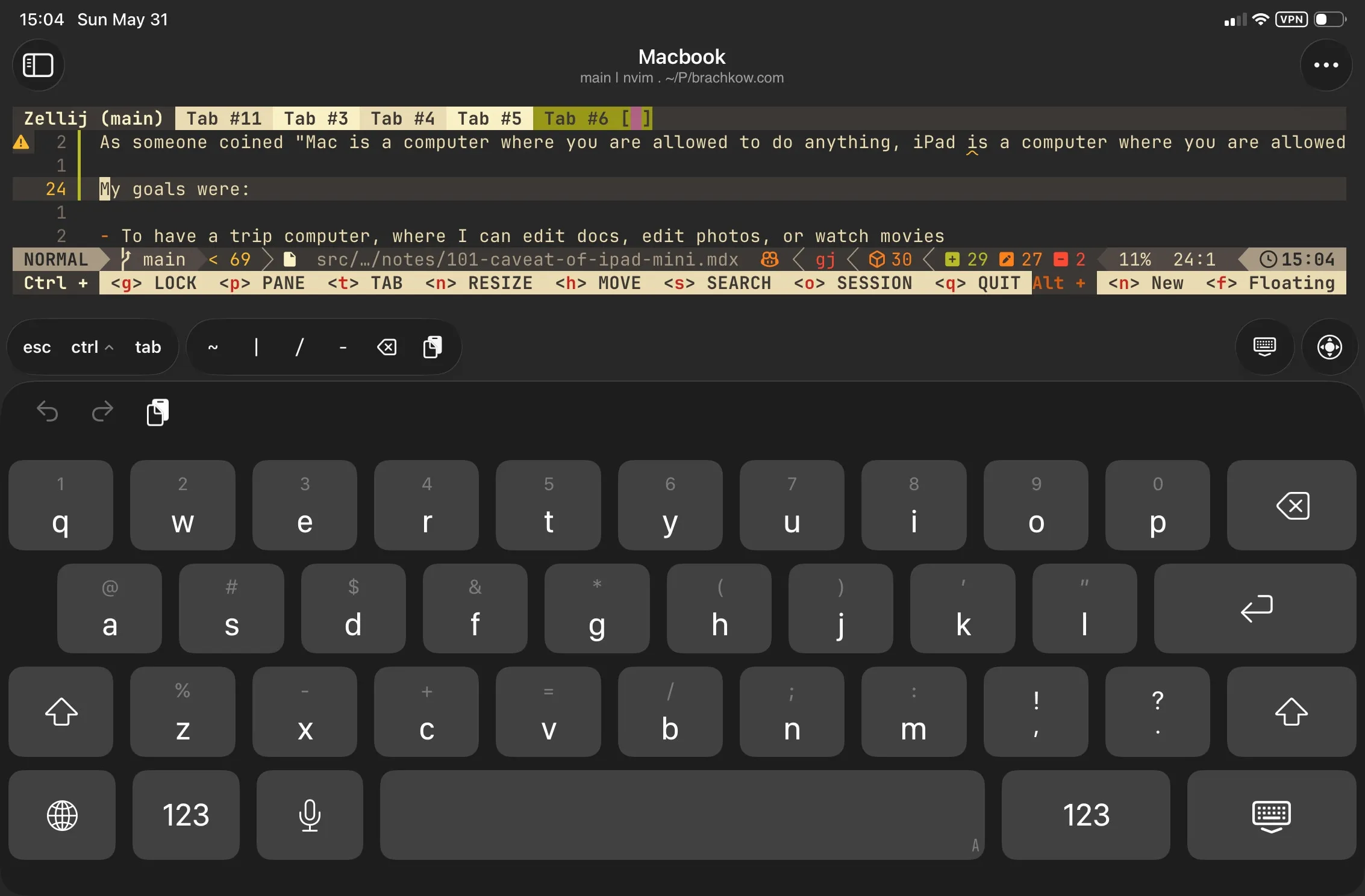
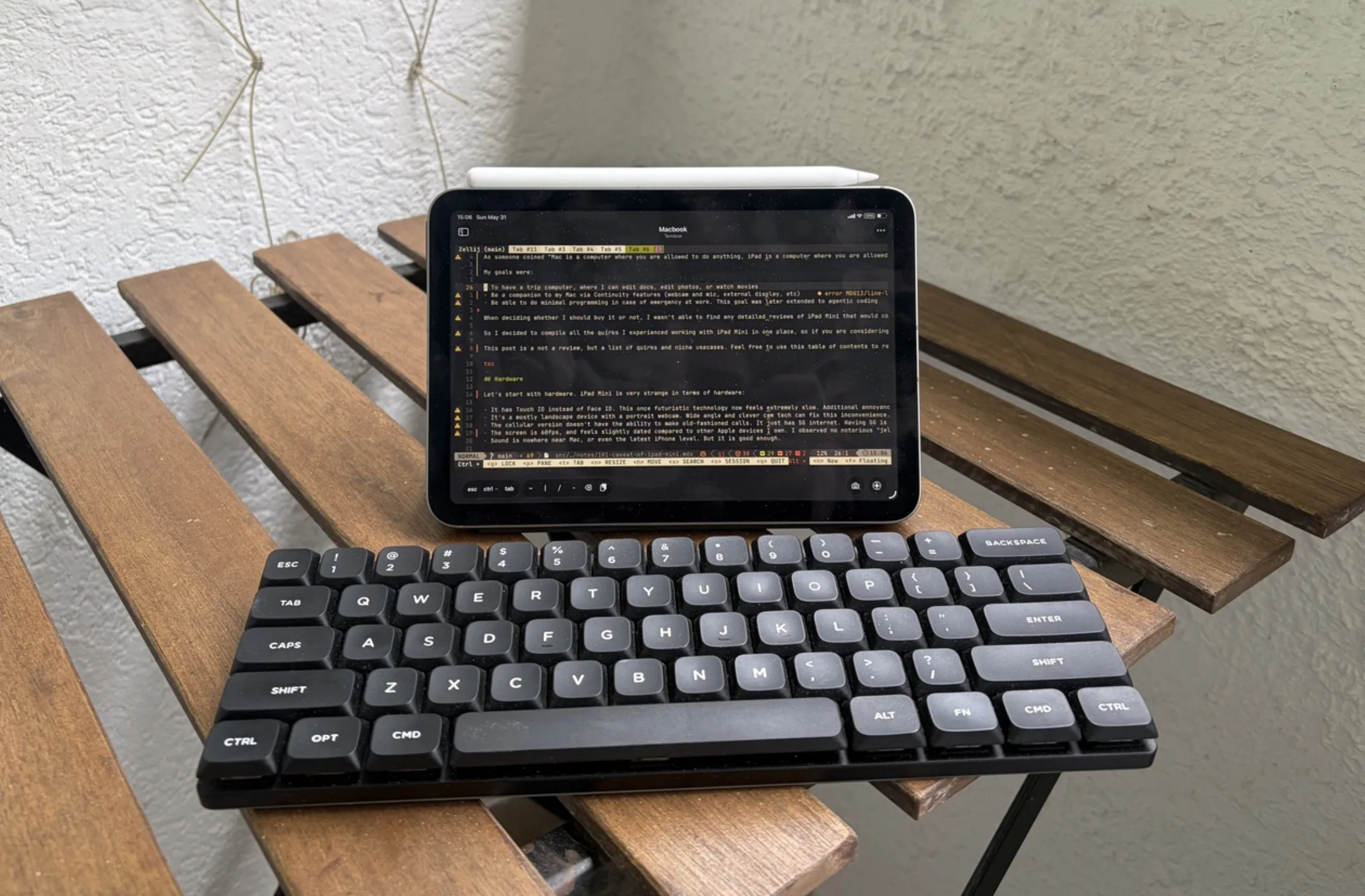
The only way that proved to be viable is to SSH into a remote machine (preferably not your MacBook, which is hard to keep always on). What I ended up doing is running a remote server, setting up LazyVim there and connecting to it via SSH using Tailscale and Mosh.
Of all the SSH clients I tested, WebSSH was the best. There is also a Ghostty-based Echo.
This setup works. I wouldn’t do serious work this way, but I edited a few posts on this blog using vim. When Claude Code appeared, I was also able to prompt and oversee some features that ended up in production.
Keep in mind that with this setup you must learn how to navigate LazyVim and tmux/zellij, and have an external keyboard to have at least some screen real estate:
I believe in the near future we will have proper cloud agents, and this device may become much more useful for real work.
Typing and keyboards – the biggest caveat
The most annoying part of iPad Mini is the typing experience. The device is too big to type efficiently while holding it with one or two hands. It is also kinda small to type using two hands on the onscreen keyboard while the device is resting on your lap.
There are atrocious-looking keyboard modes to aid you in typing:
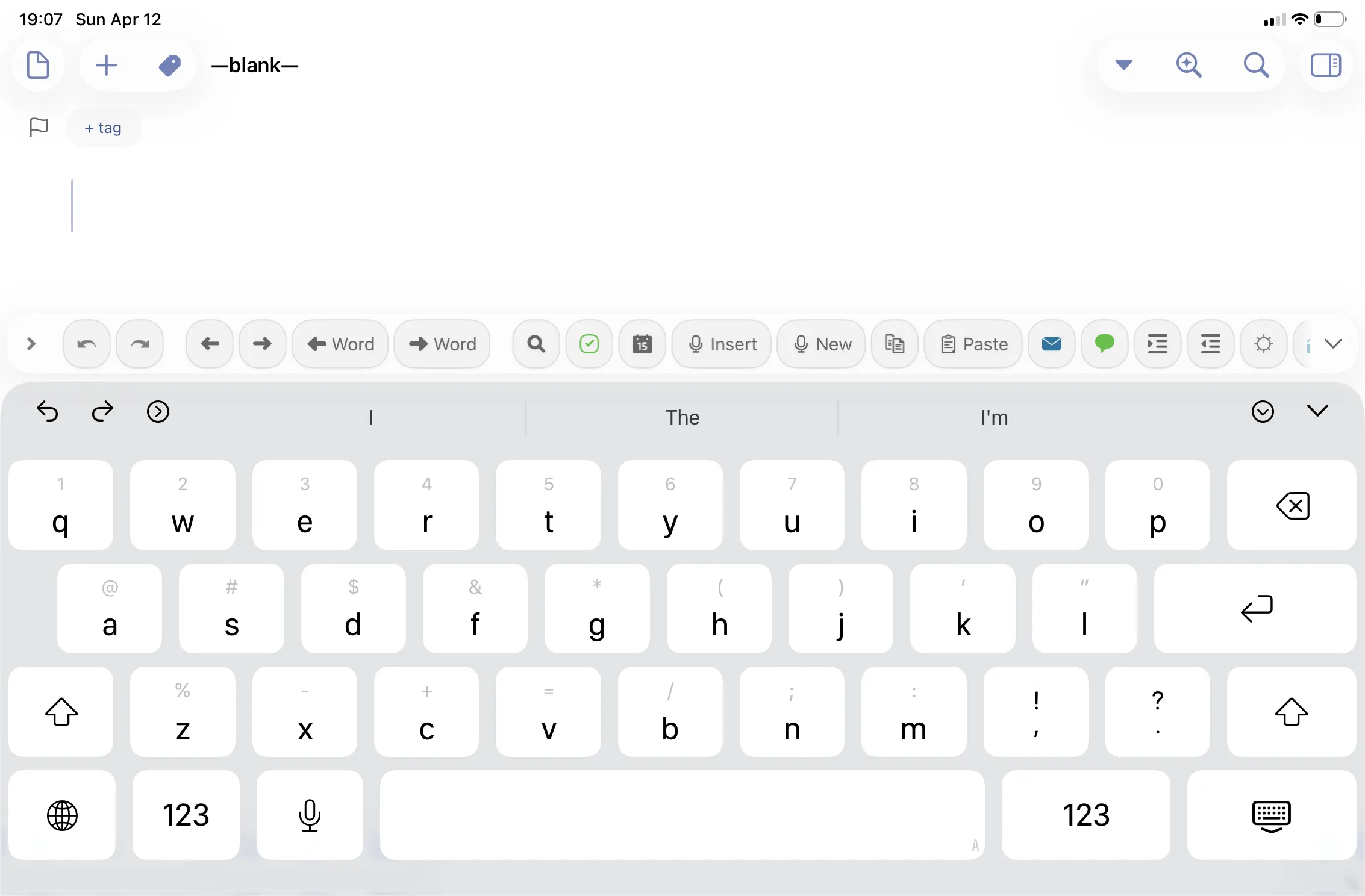
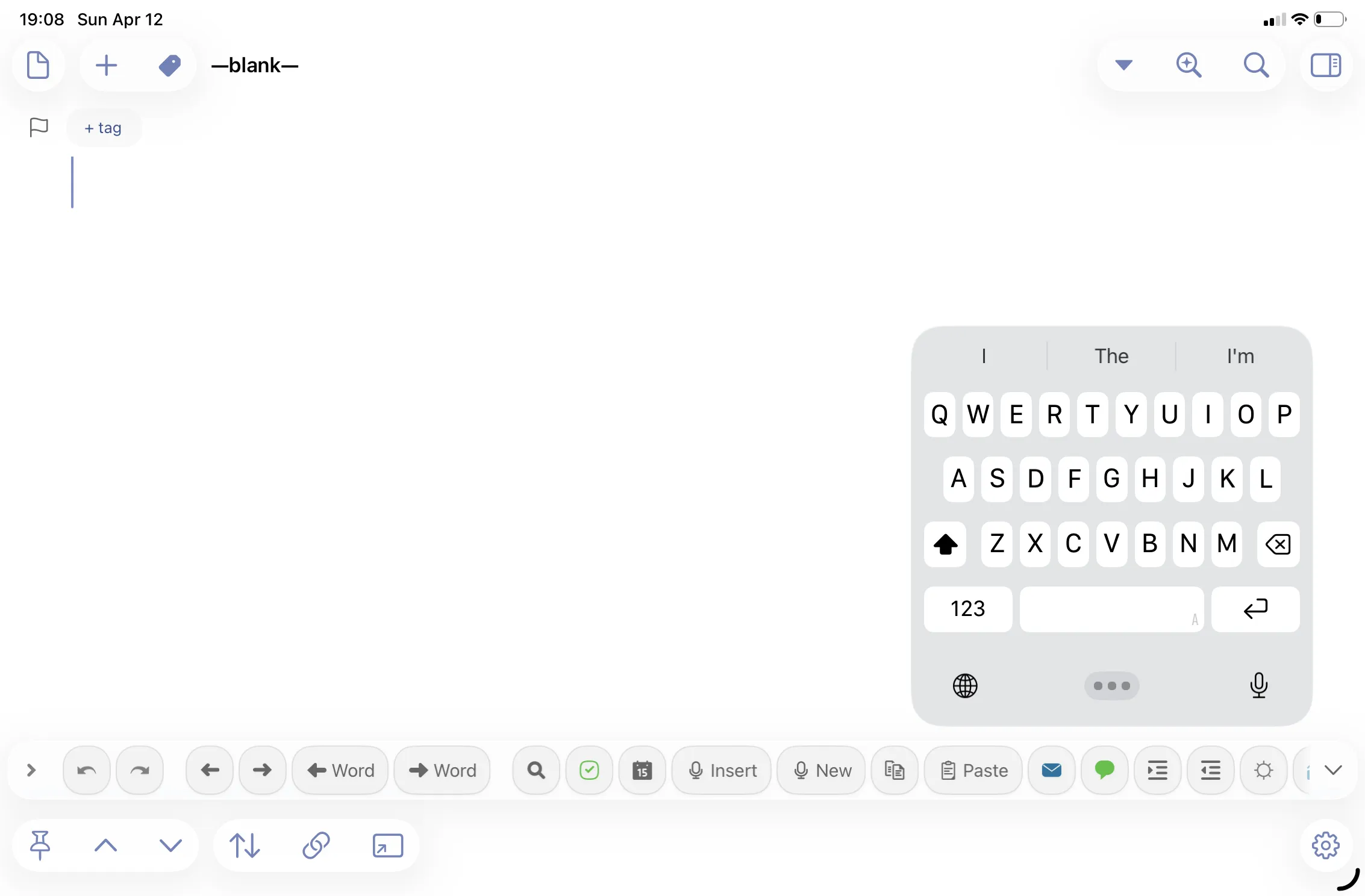
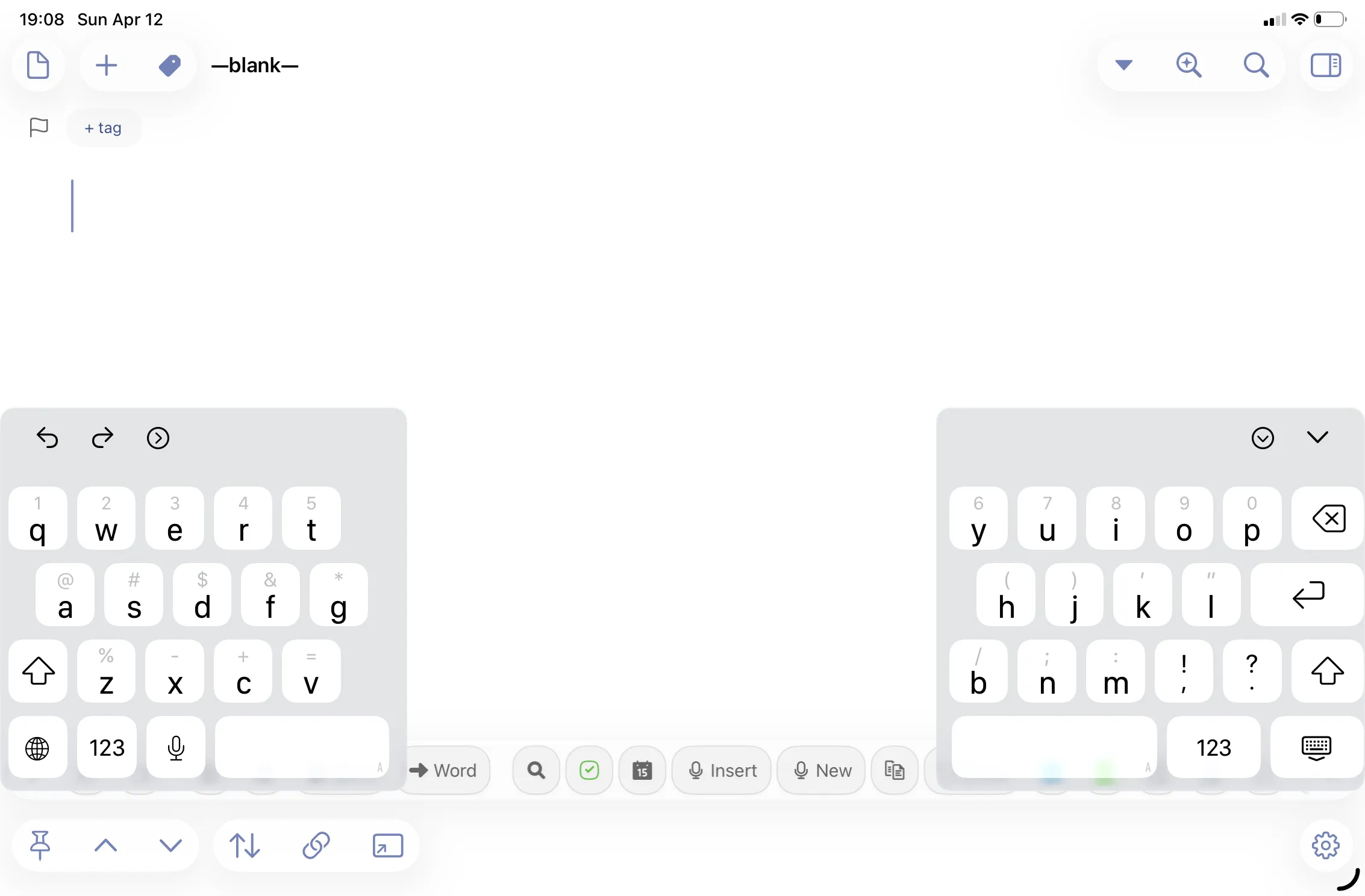
I found the floating variant to be the most effective, as at least I can type at full speed with one hand.
Unlike other iPads, it has no official physical keyboard.
The 3rd-party keyboard situation looks like this:
- There are some aliexpress-style case-keyboards. Never tried these as they looked bad even on carefully rendered product images.
- There are folding keyboards. They don’t look good, and I think they are not suitable for typing on your lap.
- There are small standalone keyboards. Keychron non-mechanical keyboards are very bad and still quite big. The smallest Keychron/Nuphy mechanical keyboards are nice to type on but bigger and heavier than the iPad. I also know that Logitech has some small keyboards, but I never tried these.
As a result, you can get a comfortable typing experience only when using a bulky external keyboard, which you can’t bring in the same small bag the iPad Mini fits in, losing all the portability benefits.
And after all that there is another issue: there is no keyboard repeat setting that exists on macOS and is used by everyone who works with any kind of text.
This setting allowed you to reduce the delay between keyboard events, which is crucial when you are deleting letters via the backspace button.
Deleting a single letter on iPad takes a noticeable moment, which means you need to hold the button for a few seconds to fully erase a word. The same applies to navigating with arrow keys. This is annoying and makes editing text unpleasant.
USB-C and Hubs
Having USB-C is a delight. Surprisingly, considering it is Apple, it is not limited:
- Connect cameras
- Read drives and SD cards
- Connect MIDI devices
- Connect external monitors directly via Thunderbolt or via HDMI dongle (will show your screen in iPad resolution)
My only complaint is that I wish external monitor support worked as a proper external monitor or Samsung DeX-like docking.
This would allow so many use cases: use iPadOS on a big screen, use as a TV stick, etc. Sadly it is not the case – an iPad connected to a 16:9 screen will display 3:2 with a letterbox around it.
Gaming
To my surprise, having a 5G cellular connection makes it a great portable gaming device.
The App Store has all kinds of games, even some old AAA games will work on iPad. But I’m not interested in any of these. What interested me is cloud gaming.
Apple famously does everything to not let any cloud gaming in, but somehow GeForce Now works on iPad (engineers, brace yourselves…) via iOS Safari PWA. And it works well, apart from occasional audio issues.
With a 5G connection on the cellular model, you can get a decent gaming experience with small enough latency to play a shooter in 60fps (which is the WebKit FPS cap) and a resolution similar to 1080p. For me, that beats taking a huge Steam Deck on a trip.
To play games on GeForce Now, you will need a gamepad. I had no problem connecting 8BitDo gamepads both by wire and Bluetooth.
You can’t fit iPad Mini into a Backbone grip controller, but people say that Razer Kishi Ultra can. So you can turn it into a cloud Steam Deck.
Conclusion
So what do I use iPad Mini for? I actually use it for a lot of things, and I enjoy using it:
- I use it to extract images from Ricoh GR or edit photos. I also show these pictures on it
- I use it as a typewriter when I want to write something without distractions
- I enjoy using it for productivity apps like Things and Calendar, due to more screen real estate and DnD
- I regularly use it as an external display, primarily for agents or Figma
- I read A4 PDF books
- I play GeForce Now on it
- I use it as my vacation computer
I also believe it has future potential for programming-related tasks, as soon as cloud agents and agent orchestrators arrive on mobile devices.
Can I live without it? Unlike Mac or iPhone – of course. But it definitely makes my life better. For me iPad Mini is a missing piece computer. It is very uncomfortable to use as a main device, but it is great at accompanying my other devices, and fits in rare situations where no device is good enough, but iPad Mini is.
Keep in mind that this post’s goal was to target quite specific things and caveats, you may have a negative sentiment about iPad Mini after reading it. But I want to make it clear that I don’t regret buying it, and I enjoy using it.